
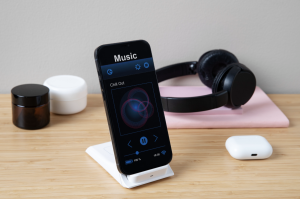
“Wait… why won’t this play anywhere else?”
That little moment of confusion usually starts with a CAF file. Maybe it was a voice recording, a podcast draft, a ringtone idea, or some forgotten sound effect from years ago. Apple devices handle CAF just fine, of course. But the second that file needs to move to Windows, Android, a car stereo, editing software, or even certain social media platforms, things get weird fast. And honestly, that’s because CAF was never built to be universally friendly.
If you’ve ended up with a stubborn .caf file on your desktop, this guide will help you understand what it is, why it exists, and how to turn it into MP3, WAV, or another practical format without destroying the audio.
So what’s the deal with CAF files?
A lot of people assume CAF is just another random audio format. Not quite right.
CAF, short for Core Audio Format, is a file container Apple created in 2005. According to Apple’s own Core Audio documentation, CAF was designed to overcome technical limitations in older formats like WAV and AIFF, especially file size restrictions. For example, regular WAV files often top out at around 4GB. Because CAF can theoretically store much bigger files, it’s particularly useful for long recordings, high-resolution sessions, and richer metadata.
In simple terms, a caf audio file is like Apple’s flexible storage box for sound.
Here’s where it gets tricky:
- CAF supports multiple codecs (PCM, AAC, ALAC, etc.)
- Not all media players recognize it
- Sharing CAF files outside Apple’s ecosystem can be frustrating
That’s why searches for CAF to MP3 or a CAF converter have steadily remained relevant, especially as people move content between devices more than ever.
Why CAF isn’t great for everyday use
CAF isn’t “bad.” It’s just… niche.
For daily listening, editing, or uploading, universal formats dominate because they’re easier. But imagine recording an interview on an iPhone. It saves as CAF. Great. Then the file needs to be:
- Uploaded to YouTube
- Shared on WhatsApp
- Edited in Adobe Audition
- Sent to a client using Windows
Suddenly, the CAF file becomes a speed bump. This is where CAF overview matters — it’s less about quality and more about compatibility.
The best formats to convert CAF into
Before using any CAF to MP3 converter, it helps to know the destination.
MP3: The tried-and-true choice for everyone
It still works nearly everywhere. Phones, smart TVs, cars, editing apps, websites — no drama.
Best for:
- Music libraries
- Podcasts
- Email sharing
- Uploading to social media
The main downside? Slight quality loss due to compression.
WAV: Bigger, but cleaner
If audio editing is the goal, many people convert CAF to WAV instead. WAV files are larger, but they preserve more detail.
Best for:
- Professional editing
- Archiving masters
- Sound design
- Voiceover production
AAC or M4A: Apple-friendly but broader
These keep better quality at smaller sizes than MP3s, though compatibility can still vary slightly. In other words, choosing from the top audio file formats depends less on “best” and more on what happens next.
How to convert CAF files without making it complicated
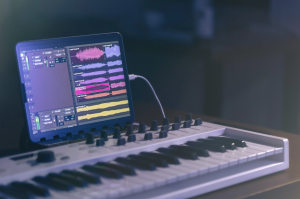
There are several ways to convert CAF files, and thankfully, most don’t require advanced audio engineering knowledge.
Option 1: Dedicated desktop converters
Tools like Movavi Audio Converter often come up because they support batch conversion, which matters more than people realize when dealing with big audio files from interviews, lectures, or archived projects.
Here’s how Movavi works when you want to get an MP3 file:
- Open Movavi Audio Converter on the computer
- Click Add Media, then choose Add Audio to import the CAF file
- Select MP3 from the output format list at the bottom of the interface
- Choose the bitrate — 192 kbps is usually a solid balance, while 320 kbps works better for music if file size isn’t a concern
- Pick the destination folder for the converted file
- Click Convert
Option 2: Rely on iTunes or Apple Music
If you’re using Apple software, CAF conversion is doable, though the path to export settings can be a bit hidden.
Option 3: Online converters
Convenient? Yes. Risky for sensitive files? Also yes.
Uploading private interviews, unreleased music, or paid voice assets to random websites can be a questionable music investment, especially when data security policies are vague.
When WAV makes more sense
If you’re planning to edit audio files later — like cutting dialogue, cleaning up noise, or tweaking EQ — converting to WAV first can save you from losing quality over multiple exports. Every compressed re-export can chip away at clarity.
So for podcast producers, musicians, or even content creators making clips for social media, it’s better to convert CAF to WAV before editing, then export final versions afterward.
It’s one extra step. Usually worth it.
CAF can hold more than audio
A .caf file can store markers, text annotations, and channel layouts alongside audio. That made it appealing in production environments, especially for Apple developers.
But ironically, this “extra capability” is also why standard users often just want out. The average person doesn’t need metadata complexity — they need a file that opens without arguments.
Common conversion mistakes
A few avoidable problems show up constantly:
Watch out for:
- Converting to ultra-low bitrate MP3
- Using sketchy online CAF to MP3 converter tools
- Accidentally overwriting the original
- Ignoring sample rate mismatches
- Forgetting metadata loss
One oddly common scenario: someone converts old voice memos, deletes the originals, then realizes timestamps and notes disappeared. Not fun.
Make the file work for you
CAF files aren’t broken. They’re just specialized. Apple created them for flexibility, scale, and technical depth — not universal convenience. So when a CAF file needs to function in everyday life, conversion becomes less of a workaround and more of a practical translation.
For most people, CAF to MP3 is the simplest answer. For editors, it might make sense to convert CAF to WAV.
Either way, the goal isn’t chasing some “perfect” format. It’s choosing one that actually fits how the audio will be used — whether that means sharing a quick memo, preserving studio-quality sound, or repurposing old recordings that would otherwise just sit there, trapped in an Apple-shaped box.
Author

Written by
Recent Posts

Jetsetter Style: Castello del Sole

The First Decision After a Collision Can Be the Most Important One
Two Weeks in Rome and Beyond: Turkish Airlines Itineraries from Boston, Chicago and Onward to India

Top 10 Hair Transplant Clinics in Turkey 2026
Artist Alley to Online Store: How Convention Artists Can Keep Selling After the Event
Categories
- Art
- Articles
- Business of Luxury
- Celebrities
- Culture
- Entertainment
- Events
- Faces of Summer 2026
- Fashion
- Fashion & Style
- Featured
- Finance
- Food, Spirits, Wine
- Hamptons
- Hamptons Celebrities
- Health
- Health & Beauty
- Lifestyle
- Luxury Lifestyle
- Press
- Profiles
- Real Estate
- Technology
- The Chronicles
- Travel
- Uncategorized
- Weddings